Updating Agent Skills Without Reinstalling Them
I have been playing around with the idea of making a game for fun, so I wanted to try a quick prototype with Phaser. The Phaser repo ships agent skills for Phaser 4, which give Claude Code or Codex notes on things like scenes, sprites and tweens.
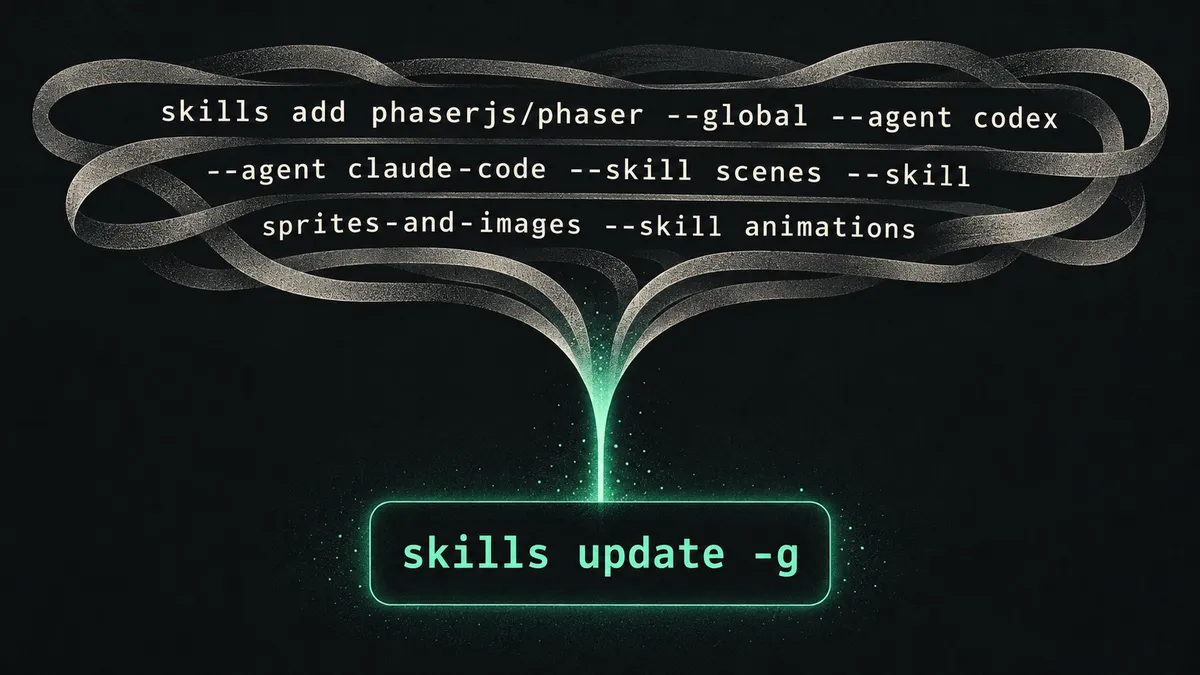
While setting them up I found out I had been upgrading my skills the slow way. I was running the full install command again each time. It turns out there is an update command:
pnpm dlx skills update -gThat updates every globally installed skill to the latest version. No need to remember which skills you picked the first time.
The commands below use whichever package manager you pick, and each one has a copy button. I use pnpm, so that is the default.
Seeing what a repo has
Before installing anything, you can list the skills in a repo:
pnpm dlx skills add phaserjs/phaser --listThe Phaser repo has quite a few, including physics, tilemaps, text and a Phaser 3 to 4 migration skill. I didn’t want all of them for a first prototype.
Installing the Phaser skills
This is the command I ran. It installs globally, for both Codex and Claude Code, and only the skills I thought I’d need to start with:
pnpm dlx skills add phaserjs/phaser --global --agent codex --agent claude-code --skill game-setup-and-config --skill scenes --skill sprites-and-images --skill animations --skill loading-assets --skill input-keyboard-mouse-touch --skill scale-and-responsive --skill cameras --skill particles --skill audio-and-sound --skill tweensThe short flags are -g, -a and -s if you want it shorter. Some things that are useful to know:
- Without
--globalthe CLI installs the skills into the current project instead, which is handy if you want them committed with the repo. - With
--globalthey went into~/.agents/skillson my Mac. By default the CLI links them into each agent’s folder rather than copying them, and there is a--copyflag if you want copies. --agentand--skillboth take'*'to mean all of them, and--allis a shorthand for all skills, all agents and no prompts.-yskips the confirmation prompts, which you’d want in a script.
Updating instead of reinstalling
This was the part that surprised me. I’d been re-running that long install command to get newer versions, but update works from what is already installed.
Update the global skills:
pnpm dlx skills update -gUpdate the skills in the current project only:
pnpm dlx skills update -pOr update just one skill by name:
pnpm dlx skills update scenesIf you leave off -g and -p it asks which scope you want. -y skips that question and picks the project if you are in one, otherwise global.
Other commands worth knowing
List what you have installed globally:
pnpm dlx skills list -gSearch for skills, optionally limited to one GitHub owner:
pnpm dlx skills find phaserRemove a skill, here only from Codex:
pnpm dlx skills remove scenes -g -a codexRestore a project’s skills from its skills-lock.json, which seems to be the skills version of a lockfile install. It is marked experimental:
pnpm dlx skills experimental_installStart writing your own skill (creates a SKILL.md):
pnpm dlx skills init my-skillAll of this is from version 1.7.2 of the CLI. Some web pages I found mention a check command, but it isn’t in the help for this version, so it is worth running skills --help if something doesn’t match.
A note on the package managers
The only thing that changes between package managers is how the package gets run:
- npm uses
npx - pnpm uses
pnpm dlx - Yarn 2 and later use
yarn dlx. Yarn 1 doesn’t havedlx, so usenpxthere. - Bun uses
bunx - Vite+ has
vp dlx, which I think works with whichever of npm, pnpm, Yarn or Bun your project uses. It also hasvpx, but that checks your local and global binaries first before downloading, sovp dlxis the closer match here.
If you installed agent skills once and have been reinstalling them to upgrade, try skills update -g instead. It is one short command and you don’t need to remember the original one.